Make a title settle with controlled easing
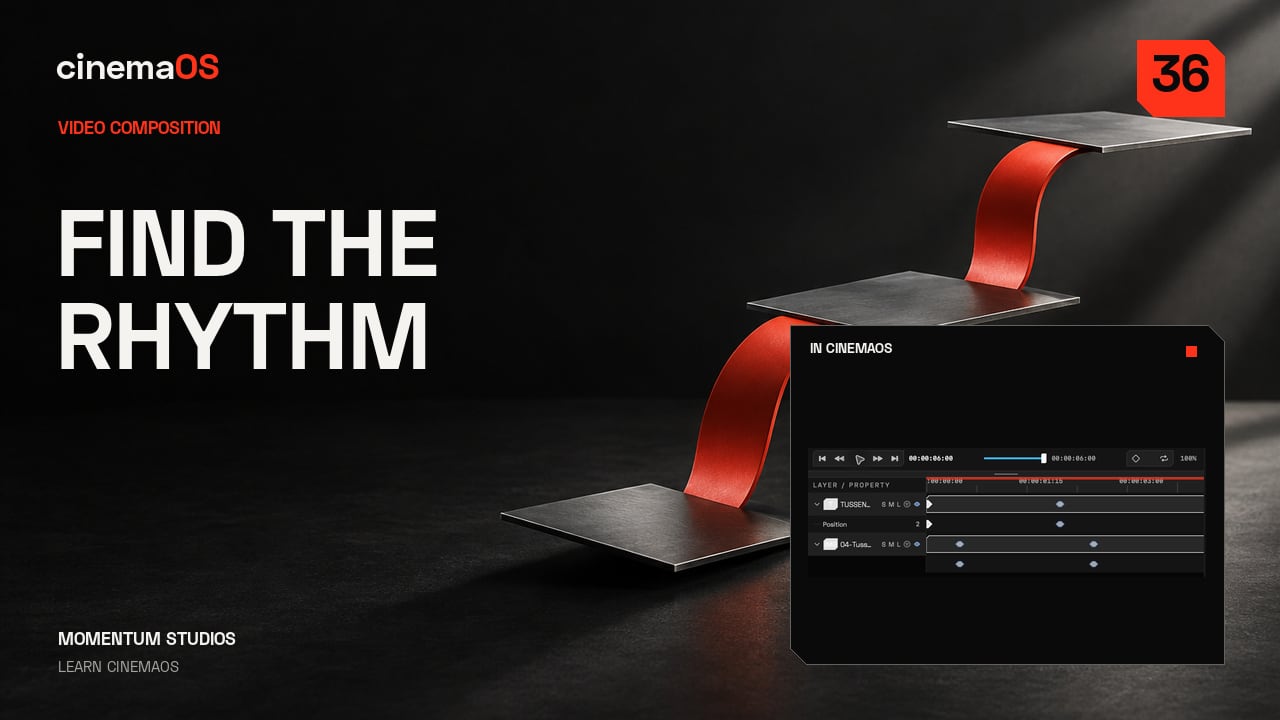
Play two Position keyframes as Linear, then set the first key to Ease to Next Keyframe and Ease Out so the title slows into place. The key times stay the same.
Click path
- Video Composition
- Position keyframes
- Linear
- First keyframe menu
- Ease to Next Keyframe
- Ease Out
Linear motion moves at one speed and then stops, which can feel mechanical. An easing preset changes the speed between two keys without moving them. This tutorial eases the title movement from the previous lesson.
Steps
- Play the Linear version. In Video Composition, start with two Position keyframes on the title and play the movement as it is.
- Open the first key's menu. Open the menu on the first keyframe and choose Ease to Next Keyframe, then Ease Out.
- Play it again. The title now slows down into its final position. The keyframe times and the end position do not change.
- Read the curve. The curve shows how the speed changes between the two positions. The preset sets the shape for you, so there are no handles to drag.
- Check at normal speed. Play the movement at normal speed and leave a calm hold at the end so the title is easy to read.
Notes
- Both keys stay at 0 and 2 seconds. Position goes from X 25 percent, Y 65 percent to X 25 percent, Y 50 percent.
- The lesson uses the Ease Out preset only. No curve handles are edited by hand.
- The keys come from Animate a title with two keyframes.
- The photographs are generated assets from the TUSSENIN demonstration project, owned by Momentum Studios.
Footage: Original generated photographic assets, Momentum Studios. Edited in cinemaOS for this tutorial.