Animate a title with two keyframes
In Atelier Video Composition, key a title's Position at zero seconds, change it at two seconds to add the second key, play it back and save the project.
Click path
- Video Composition
- Select the title
- Position
- Keyframe at 0 s
- Playhead to 2 s
- Change Position
- Play
A static title can use a little movement. In Video Composition a title moves as soon as its Position has two keyframes. This tutorial animates the TUSSENIN title into place beside a photograph.
Steps
- Select the title. In Video Composition, select the editable title next to your photograph and find Position in the inspector.
- Add the first key. At zero seconds, set Position below where the title should end up. Click the diamond next to Position to add the first keyframe.
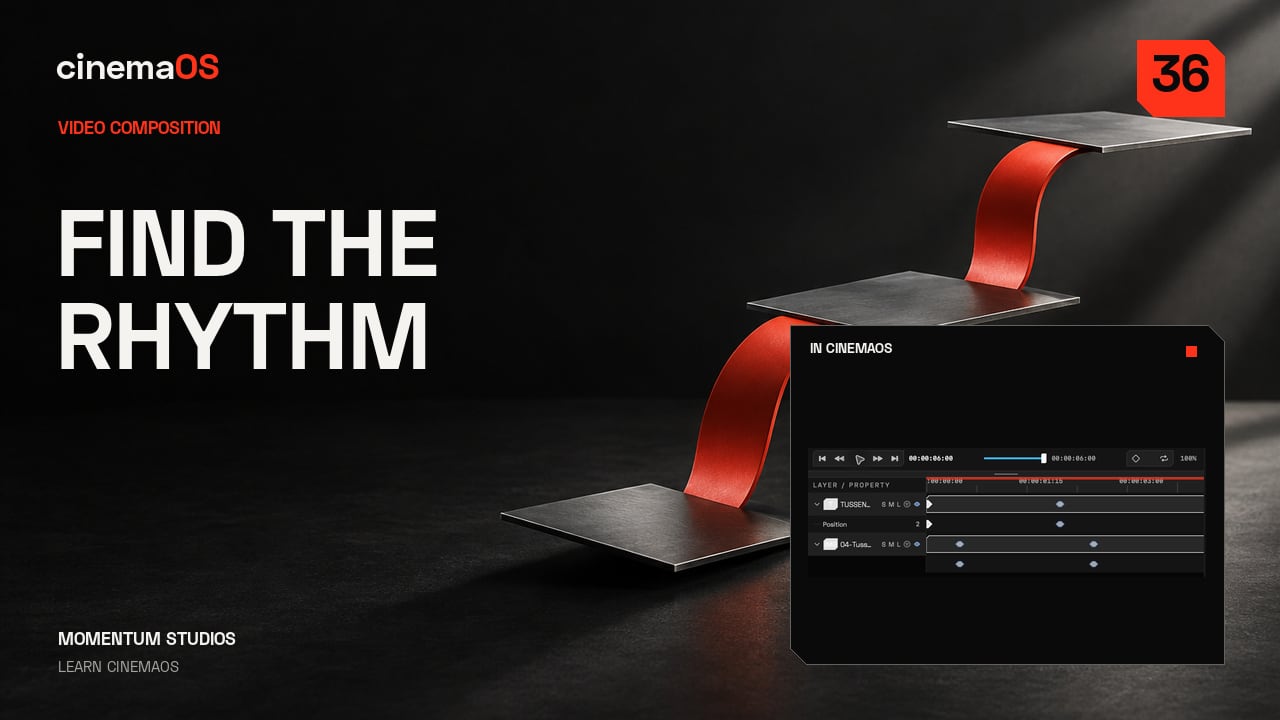
- Add the second key. Move the playhead to two seconds and change Position. Because the track already has a key, the change adds the second key for you.
- Play it. Check that both keys are on the track, then play the title as it moves into place.
- Hold and save. Leave a calm hold at the end so the title is easy to read, and save the editable project.
Notes
- Values in the project: X 25 percent and Y 65 percent at 0 seconds, then Y 50 percent at 2 seconds with X unchanged, in a six-second composition.
- Only Position is keyed. Opacity is not animated in this lesson.
- The next lesson eases the same movement: Make a title settle with controlled easing.
- The photographs are generated assets from the TUSSENIN demonstration project, owned by Momentum Studios.
Footage: Original generated photographic assets, Momentum Studios. Edited in cinemaOS for this tutorial.