Build a graphic image treatment with masks
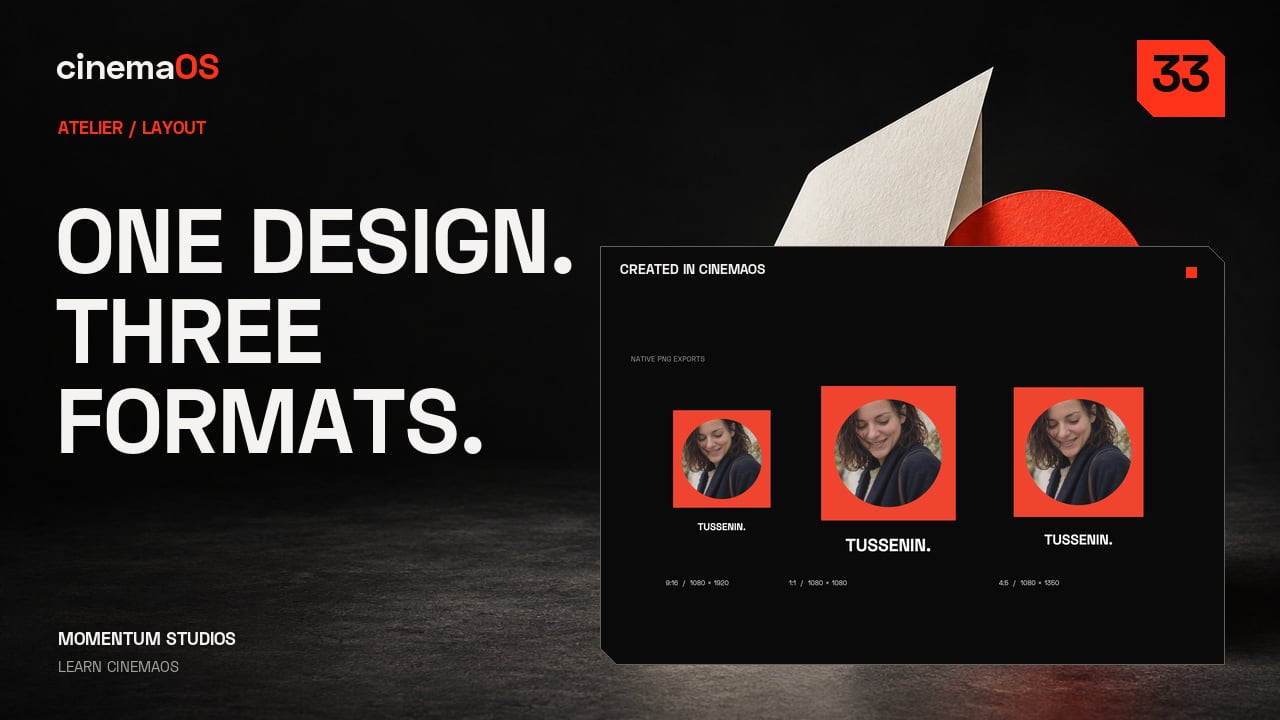
Give a portrait an ellipse vector mask in Atelier Layout, test Feather, place the face with Crop Zoom and Pan Y, send a Rectangle to the back and export the PNG.
Click path
- Layout
- Masks
- Add vector mask
- Ellipse
- Feather
- Crop Zoom and Pan Y
- Rectangle, Send to Back
- Deliver, This Aspect
Give a portrait a graphic frame. In the Layout room a mask, a shape and a title stay three separate editable layers. This tutorial crops a portrait into a circle, puts a colour block behind it and exports the composition.
Steps
- Add an ellipse mask. In Layout, select the image and open Masks. Add a vector mask and choose Ellipse to create a clean circular crop.
- Test the edge. Try Feather to soften the edge, then return it to zero for a crisp graphic shape.
- Place the face. Use Crop Zoom and Pan Y to bring the face into the circle. The image frame stays where it is; only the picture inside it moves.
- Add a backing shape. Add a Rectangle behind the portrait. Open Arrange and choose Send to Back, then balance the shape with an editable title.
- Export. Choose Deliver and This Aspect to export the PNG. Keep the project for later changes to the image, the mask and the type.
Notes
- Values in the project: ellipse at 90 percent width and height with a 5 percent offset; Feather tried at 2 percent and returned to 0; Crop Zoom 1.2 and Pan Y plus 0.4, with Pan X unchanged.
- The Rectangle is an 860 px square placed behind the portrait with a right-click, then Arrange and Send to Back. Dragging layers to reorder them was not used.
- Three editable layers remain: the rectangle, the image with its ellipse mask and the title.
- The photographs are generated assets from the TUSSENIN demonstration project, owned by Momentum Studios.
Footage: Original generated photographic assets, Momentum Studios. Edited in cinemaOS for this tutorial.