Build an editable photo cover
Add a Text layer and an Image layer in Atelier Photo, set Space Grotesk Bold, size the inset with Transform, keep the title on top in Layers and export the cover.
Click path
- Photo
- Layers
- Text layer
- Space Grotesk Bold
- Transform
- Image layer
- Width, Height, Rotation
- Export Photo
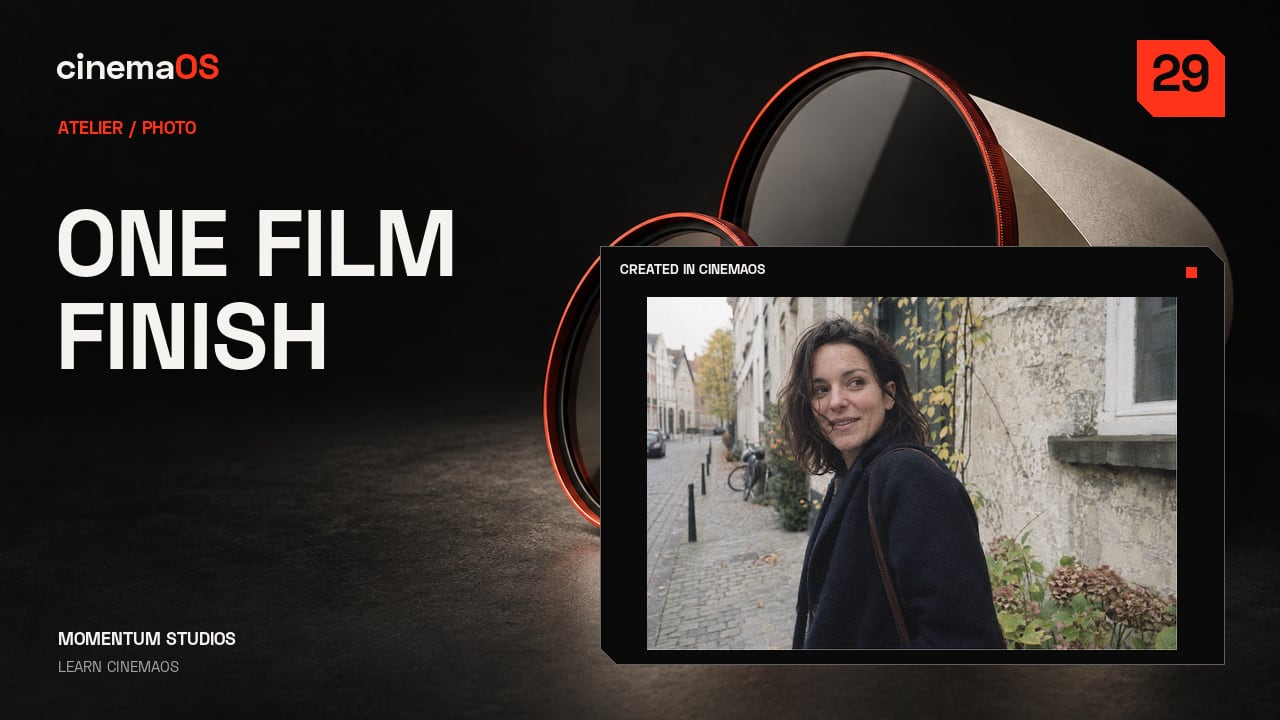
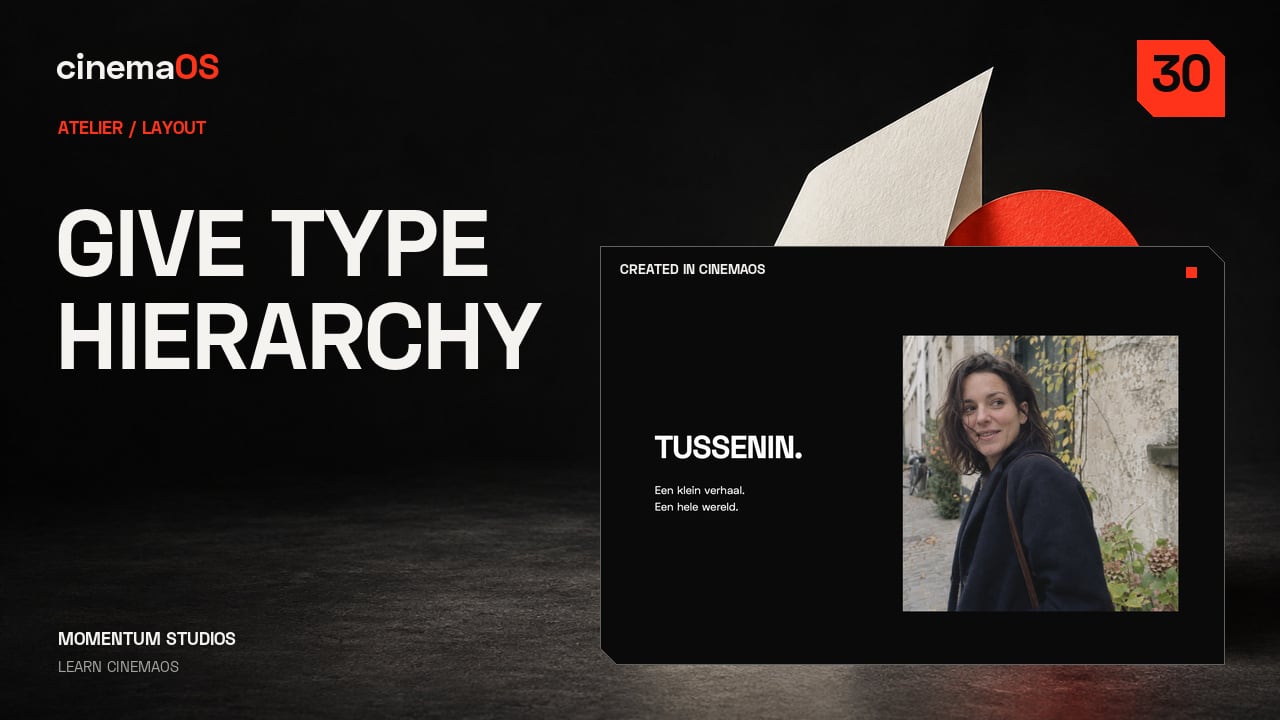
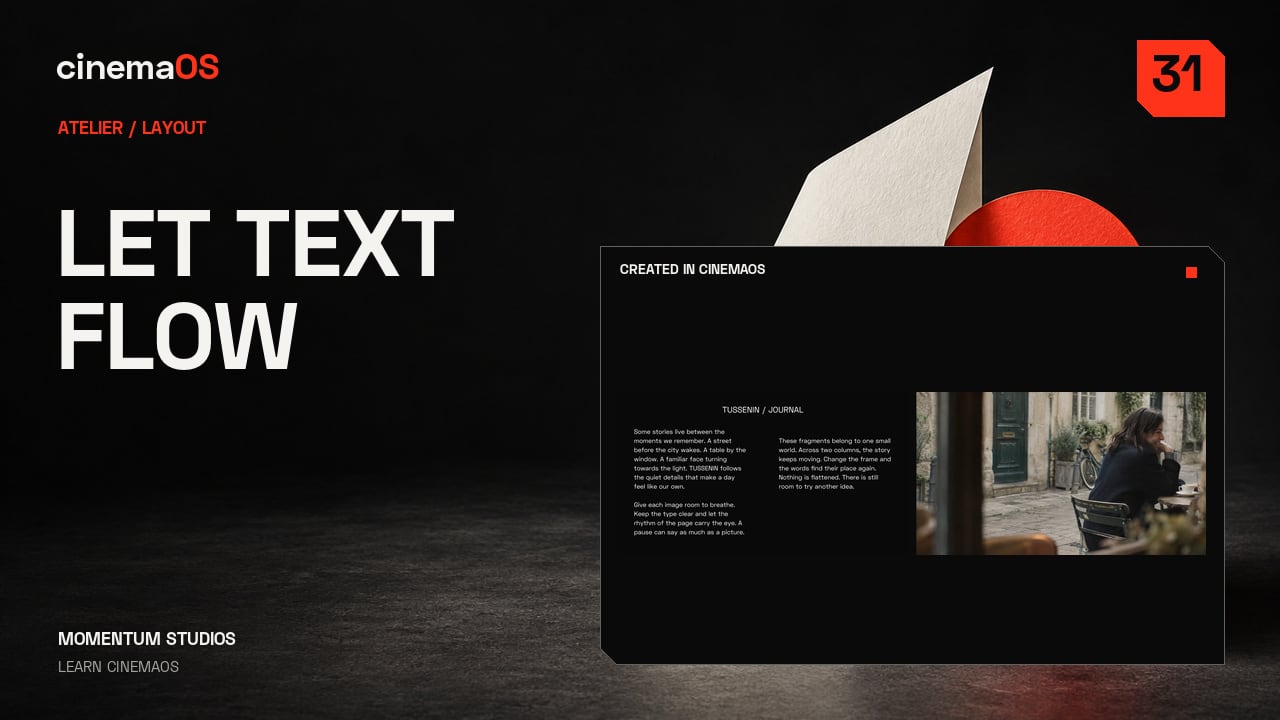
Flat cover? Add layers. The Photo room in Atelier stacks text and image layers over a photograph and keeps each of them editable. This tutorial builds a cover from a street photograph, a headline and a small inset.
Steps
- Add a Text layer. In Photo, add a Text layer from Layers and type your title. Choose Space Grotesk with a bold weight.
- Place the headline. Adjust Text size, then use Transform to place the headline below the face.
- Add an Image layer. Add an Image layer for another photograph. In Transform, set Width and Height to 28 so it becomes a small inset.
- Position the inset. Move the inset into a corner and add a slight Rotation. Keep the text above it in Layers.
- Compare and export. Compare Original, Split and After, then Export Photo. The title and the inset stay separately editable in the project.
Notes
- Values in the project: Space Grotesk weight 700, Text size 0.12, off-white F4F3EF, inset Width and Height 28 percent, Rotation minus 2.
- The Free Transform fields are X, Y, Width, Height and Rotation. Decimal entry follows the system locale.
- The Photo looks Dial surface was switched off during the demonstration so canvas gestures did not open the Dial.
- The photographs are generated assets from the TUSSENIN demonstration project, owned by Momentum Studios.
- Background reading: Make a film poster and key art from your own frames in the Journal.
Footage: Original generated photographic assets, Momentum Studios. Edited in cinemaOS for this tutorial.