Paint soft light on a separate layer
Paint gentle light with a white Soft Round brush on its own layer in Atelier Photo, blend it with Soft Light and layer Opacity, then export a copy.
Click path
- Photo
- Paint layer
- Soft Round
- Hardness, Opacity, Flow
- Paint
- Undo and Redo
- Soft Light
- Export Photo
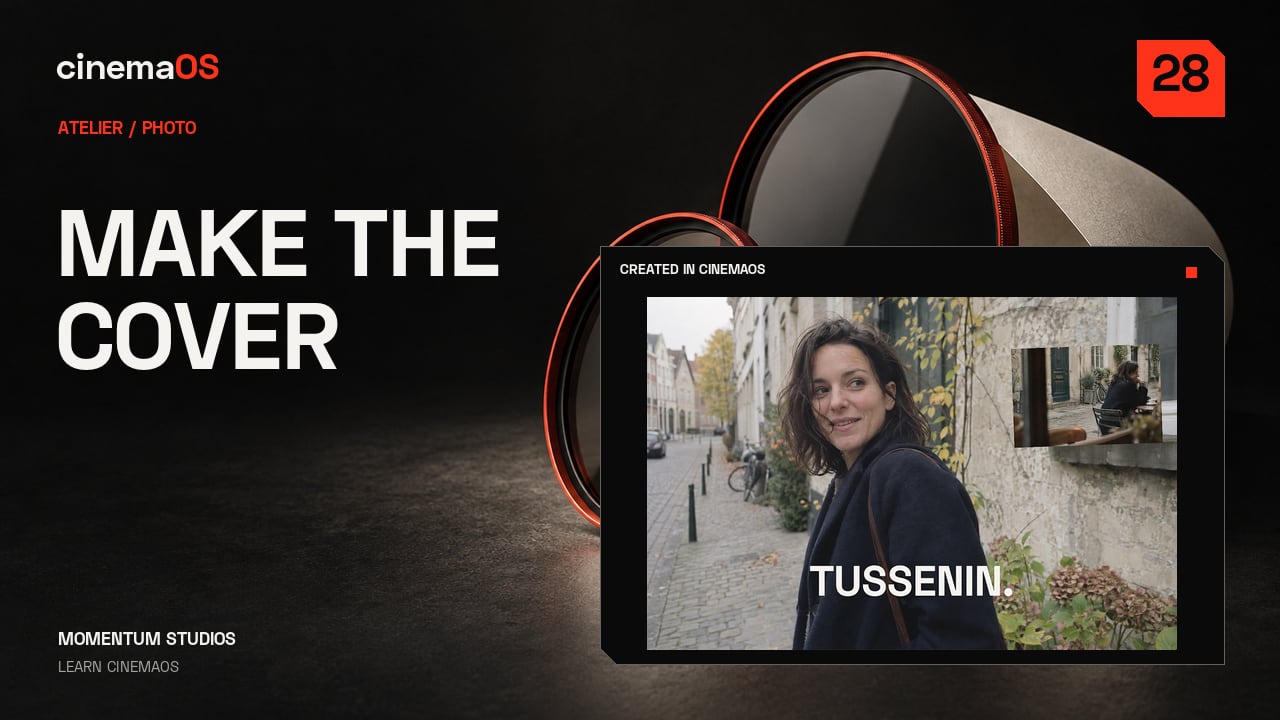
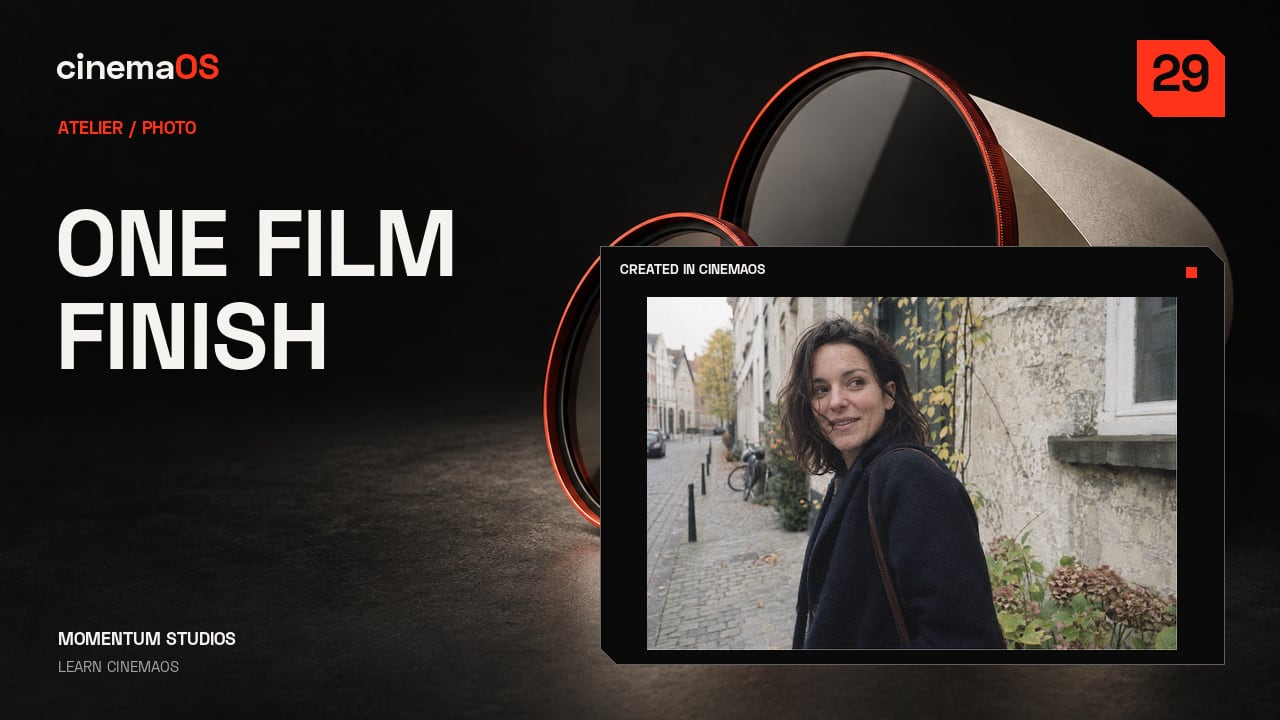
Flat light? Paint it softly. In the Photo room a brush stroke lives on its own layer, so you can shape the light of a still and change your mind later. This tutorial paints a soft window light into the background of a cafe photograph.
Steps
- Select the paint layer. In Photo, select a separate paint layer above the image. In the recording it is named Soft window light.
- Set up a soft brush. Open More brush options and choose Soft Round. A large white brush with zero Hardness and low Opacity and Flow keeps the edges gentle.
- Paint and check the stroke. Paint into the background, away from the face. Use Undo and Redo to compare the photograph with and without the stroke.
- Blend the layer. Choose Soft Light as the blend mode and lower the layer Opacity to 30 percent. Toggle the layer's visibility to judge the balance.
- Compare and export. Compare the finished photo, then use Export Photo. The brushwork stays on its own editable layer in the project.
Notes
- The Soft window light layer already exists in the project; the recording selects it and does not show its creation.
- In the recording the layer Opacity moves from 45 to 30 percent and Soft Light is chosen from the blend mode menu.
- The Photo looks Dial surface was switched off for the brush demonstration, so canvas gestures painted instead of opening the Dial.
- The photographs are generated assets from the TUSSENIN demonstration project, owned by Momentum Studios.
Footage: Original generated photographic assets, Momentum Studios. Edited in cinemaOS for this tutorial.